
MoonLight Auto Clicker
A simple, fast and lightweight auto clicker for Windows. Automate your mouse clicks with ease.
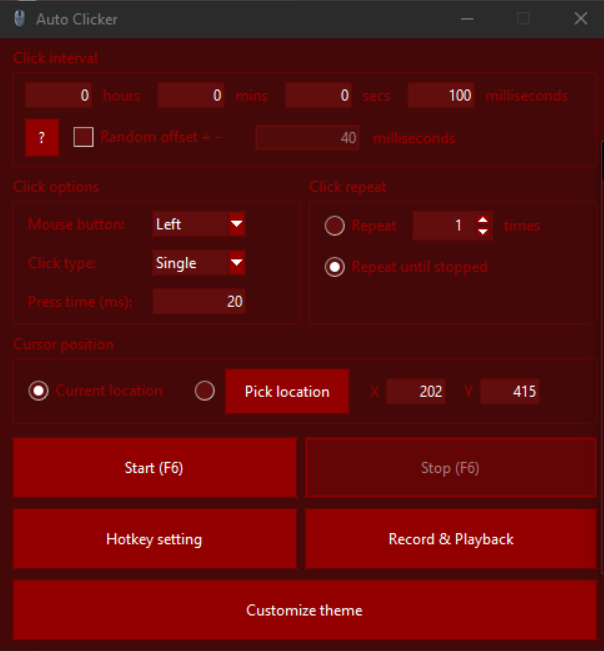
Features
Everything you need for simple automated clicking.
Fast Clicking
Automate mouse clicks quickly and efficiently.
Simple Controls
Easy-to-use controls designed for quick setup.
Windows
Designed for Windows computers.
Custom Hotkey
Rebind the start/stop key to whatever fits your workflow.
Record & Playback
Record a sequence of clicks and replay it back exactly.
Custom Themes
Pick a preset theme or build your own with the color picker.
Click Modes
Choose the clicking behavior you need.
Perform one click at a time.
Automatically perform double clicks.
Alternate between holding and releasing on a timer.
Bind any keyboard key and rapid-fire it or hold it down instead of clicking the mouse.
Download
Get MoonLight Auto Clicker for Windows.
MoonLight Auto Clicker
Free, simple and lightweight.
FAQ
Frequently asked questions.
Is MoonLight Auto Clicker free?
Yes. MoonLight Auto Clicker is available as a free download.
What operating system does it support?
MoonLight Auto Clicker is designed for Windows.
What click modes are available?
MoonLight Auto Clicker supports Single, Double, Hold & Release, and Keyboard click modes. Keyboard mode lets you bind any key and set it to rapid-fire or hold, in addition to a custom hotkey, click recording and playback, and theme customization.
Where can I download it?
You can download MoonLight Auto Clicker directly from this website.
Why does Windows show a SmartScreen warning?
SmartScreen flags apps that haven't built up enough download reputation yet or don't carry a paid code-signing certificate. It's a caution flag, not a detection of malware. Choose "More info" then "Run anyway" to continue installing.
How do I see what changed in each update?
Click "View Changelog" next to the download button to see the full update history.